Security awareness
Keep the record of who completed security training, group those records into campaigns, watch your compliance rate, and produce the evidence an auditor asks for.
Security awareness training (teaching staff to spot phishing, handle data safely and follow your policies) is one of the controls auditors check most often, and one of the hardest to evidence cleanly. This module is the record of completion, not the training itself: most organisations run the courses through a platform such as KnowBe4, and Aegis stores the results, groups them into campaigns and reports the rate. Records arrive by hand, by syncing a connected provider, or by CSV import against a campaign — answering the recurring auditor question, "show me that everyone completed security training in the past twelve months."
Who uses it
The module must be switched on for your tenant (the
SECURITY_AWARENESS feature); if it is not, both this page and the
campaign detail page show a "not available on your current plan" message
instead. The sidebar link appears from
Contributor upwards, but the
page carries no role gate, so a
Viewer following a direct link
still reaches it and can read records, campaigns and exports — deliberate, so an
auditor with a Viewer account can pull the proof unaided. A Contributor also
sees Add Training Record and can create campaigns and record
completions. Only a Manager or
Admin holds the sync permission, so
Sync Now never appears for a Contributor, and editing, archiving
and deleting a campaign sit with those roles too. The three AI buttons need read
access only, so a Viewer sees them as well — and a run still spends a credit.
Actions you cannot use are hidden, not greyed out.
What's on this screen
The landing page sits at /security-awareness, reached from
Security Awareness in the Governance group of the left
sidebar. Under the title is the line "Manage security awareness training
records, sync from KnowBe4, and track compliance", then a row of summary cards:
Total Records, Completed (green),
Overdue (red), Compliance Rate (blue) and
High-Risk Users (amber above zero) — reading 6,
5, 0, 80% and 1 in the
capture. An Avg Phishing Score card slots in between
Compliance Rate and High-Risk Users, but only once a
phishing-simulation record exists; there are none here. If anything is overdue,
a red alert strip appears above the cards.
A right-aligned action row follows. For Managers and Administrators it starts
with three AI actions — High-Risk Cohort (AI),
Campaign Draft (AI), Effectiveness (AI); each one
profiles named colleagues, so commissioning it is reserved for the roles that
manage training, and Contributors and Viewers do not see these buttons. Then the
dark Add Training Record button, which shows only while the
Training tab is open. Sync Now sits between them for
Managers and Admins. This capture was taken as a Contributor before the AI
actions were restricted, so Sync Now is absent while the three AI
buttons still appear.
Three tabs come next — Training (open by default),
Phishing Results and Campaigns. The Training tab
carries a Search training records... box, a
Search button and an All Statuses filter, then the
table: Course, Provider, User,
Status, Score, Completed. Rows are not
clickable — this is a register, not a set of detail pages. At the foot sits
"Showing 1 to 6 of 6 training records" with paging, and below that a
Saved AI insights panel with the action items raised from those
briefings listed underneath it.
-
Read the
High-Risk Userscard. Hover it for the definition: people with overdue or failed required training, or a failed or low-scoring phishing simulation. It can be non-zero even when the rate looks healthy — here1against80%. -
Select
High-Risk Cohort (AI)to have that number explained. A modal opens describing what the action covers, with aBuild planbutton to start it. -
Select
Effectiveness (AI)to ask a different question — whether the training is working at all. Its modal opens the same way, with anAssess Effectivenessbutton. -
Type into
Search training records...and selectSearch, or pick a value fromAll Statuses. The table reloads filtered and the count line below it updates. -
Scroll to
Saved AI insightsat the foot of the page. Until you keep a briefing it reads "No AI insights saved yet" and points you toSave as record; kept ones are listed here to edit or delete.
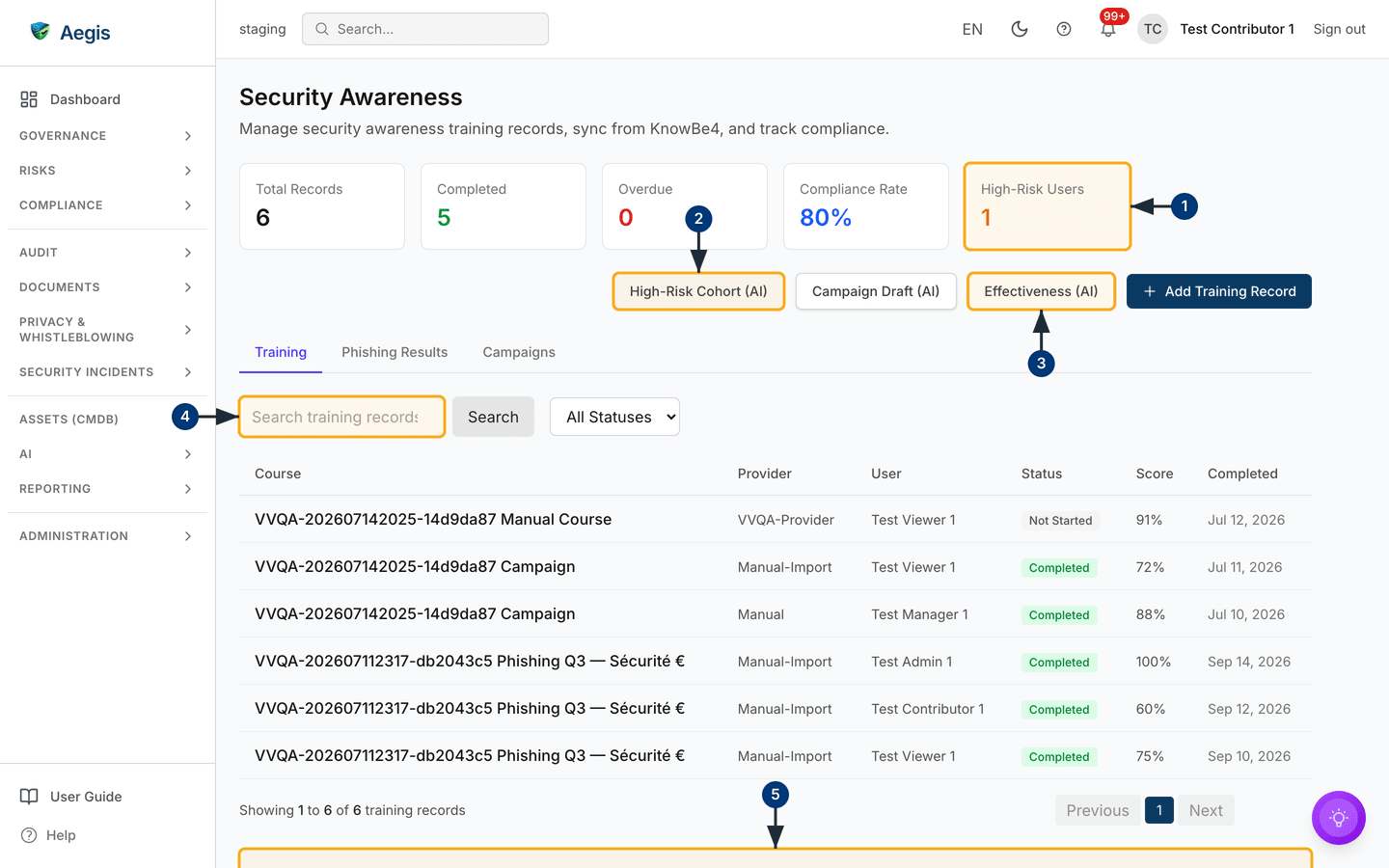
This screenshot comes from a test tenant, so the course names are generated
strings (VVQA-...). Before any records exist the cards read
0 and the table shows an empty state.
Add a training record
-
On the
Trainingtab, selectAdd Training Record. A dialog of the same name opens over the page. -
Enter the
Course Name— the only required field, marked with a red asterisk. -
Provideris pre-filled withmanual— overwrite it if the completion came from elsewhere, for exampleknowbe4. Put the person's email address inUser IDso the record is attributable; the table then shows their name. -
Set the
Status—Not Started,In Progress,Completed,OverdueorFailed— plus aScore(0–100),Due DateandCompleted Dateif they apply. -
Select
Save Record— it stays disabled untilCourse Namehas text. The dialog closes, the new row joins the table and the summary cards recalculate. No confirmation message is shown: the refreshed table is the confirmation.
Sync records from a provider
-
Select
Sync Now. The button switches to a spinner andSyncing...while the request is queued. - Read the message that follows. "Training sync queued successfully" means the job was accepted and now runs in the background. The cards refresh shortly afterwards; reload the page to see the imported rows.
A Contributor never sees this button, and with nothing connected there is nothing to pull — add records one at a time instead, or import completions in bulk against a campaign. Setting up the connection is covered in Connectors.
Group records into campaigns
A campaign turns a training cycle into a named record with a period, a type and a completion rate rolled up from its completions. Auditors usually want the campaign, not the raw rows.
-
Select the
Campaignstab. A toolbar appears with aSearch campaigns...box andAll StatusesandAll Typesfilters, above the cardsTotal Campaigns,Active CampaignsandAvg. Completion, and a table listingCampaign Name,Type,Status,Period,RecordsandCompletion Rate. With none yet you get a "No campaigns yet" empty state. -
Select
New Campaign. TheNew Training Campaigndialog opens. -
Enter a
Name(required) and choose aType— the list opens onOtherand also offersPhishing Simulation,Policy Acknowledgement,Video CourseandLive Session. There is no status field here: a new campaign is always created asPlanned, andStatusonly appears once you re-open it withEdit. -
Work down the rest of the form —
Start Date,End Date, then the optionalTarget Audience,Training Material URL,OwnerandDescription. TheOwnerpicker only appears if your role may list users. An end date before the start date is refused with "End date cannot be before start date". -
Select
Create Campaign. "Campaign created successfully" appears, the campaign joins the table, and selecting its row opens the campaign detail page.
Work on one campaign
The detail page opens at /security-awareness/<id> with a
Back to Security Awareness link, the campaign name, and its period,
audience, owner and training-material link beneath. Four cards summarise it —
Participants, Completed, Completion Rate,
Avg. Score — above the Completions table. Exports and
the edit, archive and delete actions sit in the same header.
-
Select
Add Completionto record one participant by hand, orImport CSVto bring in many at once. -
For the import, upload a file with the columns
email,completed_atand an optionalscore(0–100), capped at 1 MB. -
Select
Preview. Aegis matches each row to a user by email and reports how many are ready and how many cannot be imported, with the row number, email and reason for each failure. Nothing is written yet. -
Select
Import— the button names the count it will write, for exampleImport 12 completion(s). The completions are saved and the counts and rate update. If no row can be imported the modal says so and asks you to fix the file and try again;Choose another filetakes you back a step. -
Use
Export CSVorExport PDFfor the audit copy — both are available to a Viewer, so evidence can be self-served.
Archive hides the campaign from the default list but preserves
it as audit evidence — the status filter brings archived campaigns back into
view, and the Archive button then disappears from that
campaign. Delete is different: the completion records survive,
but the campaign disappears from every list. Both ask you to confirm, and
both are Manager and Admin actions.
Assign a campaign and let people confirm
A campaign on its own is a plan. Assign training on the campaign
detail page is what gives a named person a deadline and a way to act on it. Pick
people from the directory, whole departments, or both, and set one shared due
date.
-
Select
Assign training. Tick the people and the departments this campaign applies to, and choose a due date. The date cannot be in the past. - A department expands into one assignment per active employee in it, using the department field from your HR sync. Employees there who have no Aegis account cannot be assigned anything — the confirmation tells you how many, alongside how many were newly assigned and how many already had it.
- Everyone newly assigned gets a notification in Aegis and, if their preferences allow it, an e-mail. The message carries the campaign's course link, so they can start from it.
-
The
Assignmentstable on the campaign shows who has it, the department they were assigned through, the due date, their status, when they confirmed and their score.
My training
Every employee has a My training entry in the sidebar, at
/security-awareness/my-training. It lists only their own
assignments — a Viewer reaches it just as an Admin does, because confirming your
own training is something every employee must be able to do.
-
Each row shows the campaign, the deadline and, when the campaign has one,
Open course— the link to the external course or the uploaded material. -
When they are done,
I completed thisrecords their confirmation, with an optional score. The row turns toCompletedand the button disappears. - The confirmation becomes a completed training record on the campaign, so the completion rate, the register and the exported evidence report all reflect it straight away.
Aegis records that a person confirmed they completed the training, who they are and when — the same evidence a policy acknowledgement produces. It does not host the course or mark a test, and the optional score is self-reported. Your training platform grades; Aegis governs. Nobody can confirm on somebody else's behalf, whatever their role.
Reminders
Once a campaign is assigned, Aegis follows it up without being asked. Every
morning it marks assignments whose deadline has passed as Overdue,
warns people whose training falls due within the next week, and reminds those
already overdue. Nobody is reminded about the same assignment more than once a
week, so a long-overdue item does not mail somebody daily.
Phishing results
The Phishing Results tab shows results from two real sources: a
connected phishing-simulation provider, and results imported by hand into a
phishing campaign. Until there is either, the tab says "Phishing simulation not
connected" and invites you to connect a provider — an empty tab is the honest
answer, not a bug.
With a provider connected, the nightly training sync mirrors each of its phishing campaigns and records, per recipient, whether they fell for it. Clicking the link, replying, opening the attachment or entering data counts as a failure; everyone else — including people who reported the mail — counts as a pass.
An earlier version of this tab synthesised click and report rates from
training completions. That was removed: derived numbers presented as real
simulation results would mislead in a compliance context. The same rule
still applies to the score — the provider does not supply one, so Aegis
leaves Avg Phishing Score blank for synced results rather than
inventing a grade. The failure rate is real, because it comes from the
recorded outcome.
The AI assist
Three AI actions read your current training data and write a briefing for a person to judge. They are available to Managers and Administrators: each analysis names individual colleagues, so starting one is a people-management decision rather than a read — Contributors and Viewers do not see these buttons.
-
High-Risk Cohort (AI)— proposes targeted interventions for the highest-risk users, grouped by reason (overdue, failed, low score, phishing clicks). The ranking is calculated from your records; the AI narrates it. -
Campaign Draft (AI)— drafts your next campaign: which topics to run, for which audience, ordered by the real weaknesses in your posture. -
Effectiveness (AI)— reads completion against assessment scores. High completion with low scores is a retention gap, not a success.
- Select one of the three buttons. The modal opens on an explanation of what the action covers and a note on its limits.
-
Select the start button —
Build plan,Draft CampaignorAssess Effectiveness. The progress steps run in turn, from loading the completion metrics to drafting the narrative. -
Read the result, with its confidence and the figures it was grounded in,
then decide.
Copytakes the text,Save as recordkeeps it inSaved AI insights,Create action itemturns a recommendation into tracked work.
None of these actions assigns training, changes a record or enforces anything: they produce a proposal, and a person reviews and decides. Each run is a billable AI action against your tenant's credit balance.
Tips and limits
-
The
Trainingtab has no bulk upload of its own — add records one at a time, or sync a connected provider. Bulk CSV import belongs to a campaign detail page. - Training rows are not clickable and there is no per-record edit or delete. Treat the register as append-and-correct-by-sync rather than an editable list.
-
If the statistics fail to load, the whole card row is replaced by a message
and a
Retrybutton — distinct from an empty tenant, where the cards show real zeros. - To tie training to a control, attach the campaign export as evidence from the control itself in Control monitoring — there is no link from here.
Where this connects
Campaign exports become proof you file alongside other audit material in Evidence, and they support the awareness-and-training controls you track in Control monitoring and Compliance frameworks. People come from your HR records; connecting KnowBe4 is covered in Connectors. Work raised from an AI briefing lands in Action items, and credit use in AI dashboard. Roles are set out in Part 3 — What each role can do.